Wie registriere ich eine professionnelle Entität (Unternehmen, Verwaltung, Eigentümergesellschaft,…)
Step 1
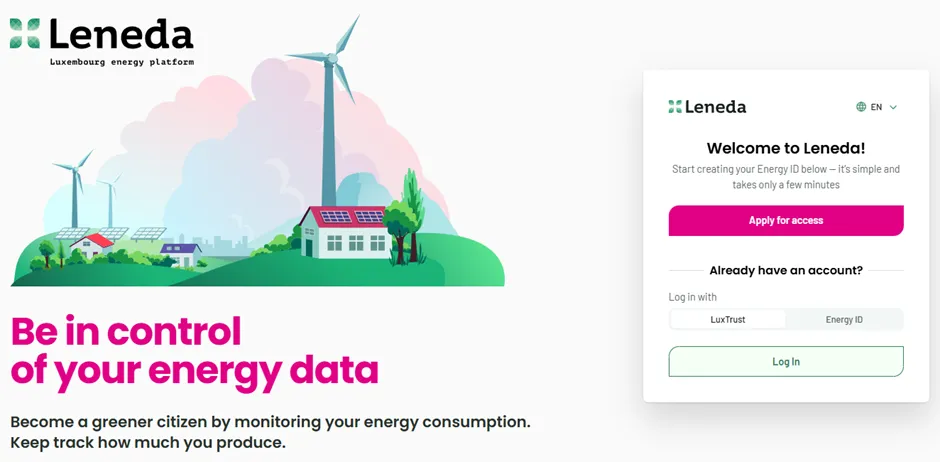
Open the web page “app.leneda.eu” in your browser. You will see the log-in screen with different options.
Step 2
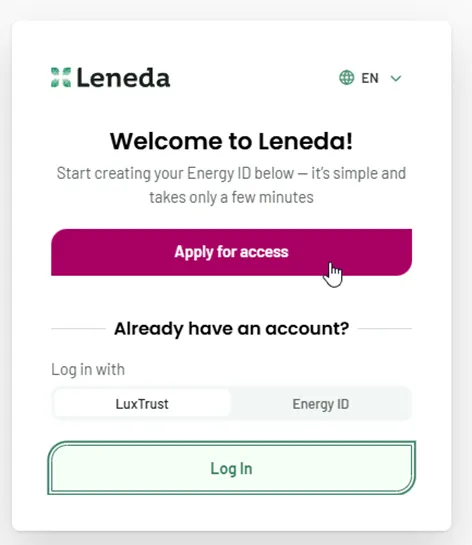
At the bottom you will see “Apply for access” for new users. Click on this option to start your onboarding process.
Step 3
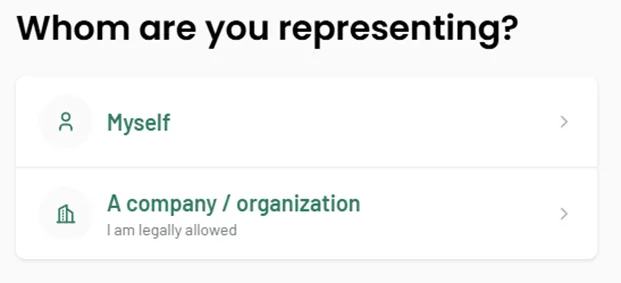
In this step, you need to choose whether you want to onboard yourself or register a company or organization to Leneda. Select “A company/organization” if you wish to register a business account. Please note that you must first register yourself as an individual user before you can proceed to register a company or organization.
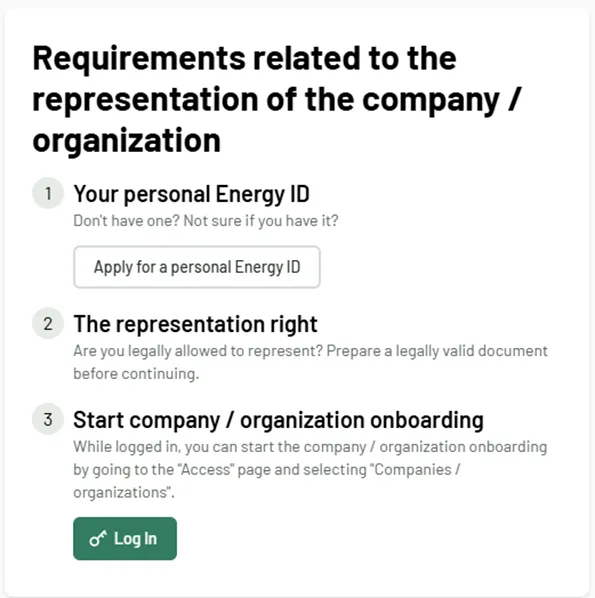
You will need your personal energy ID and the authorization to represent the company or organization for onboarding.
Step 4
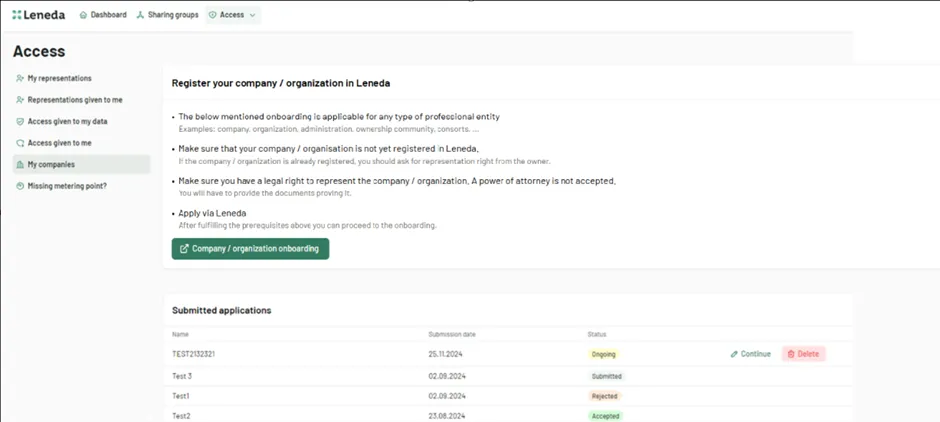
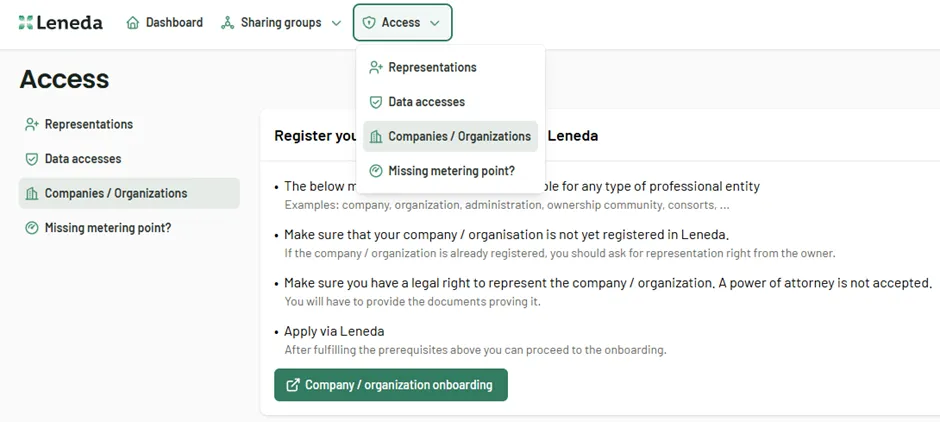
Log in to Leneda via LuxTrust or Energy ID. On your dashboard, you will see the “Access” tab. Choose “Companies/Organizations”, then click on “Company / organization onboarding” and a new tab will open.
Step 5
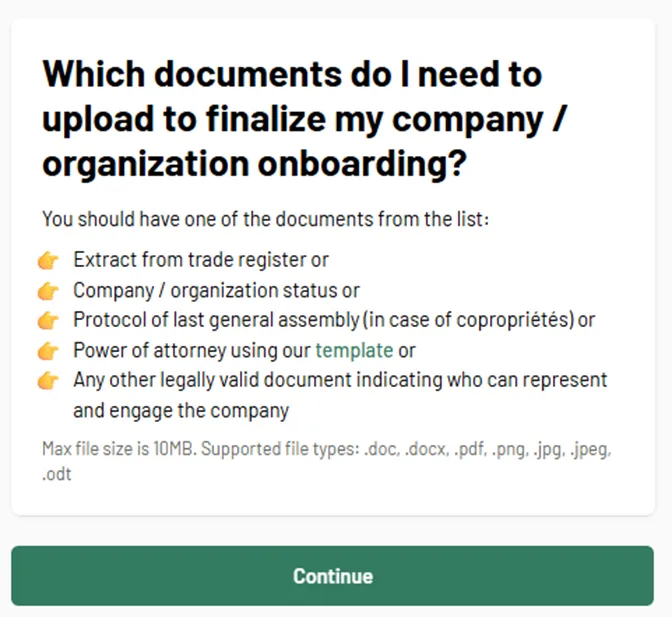
Leneda will tell you which documents you will need to upload at the end of the onboarding process to make sure that the submission can be accepted.
Step 6
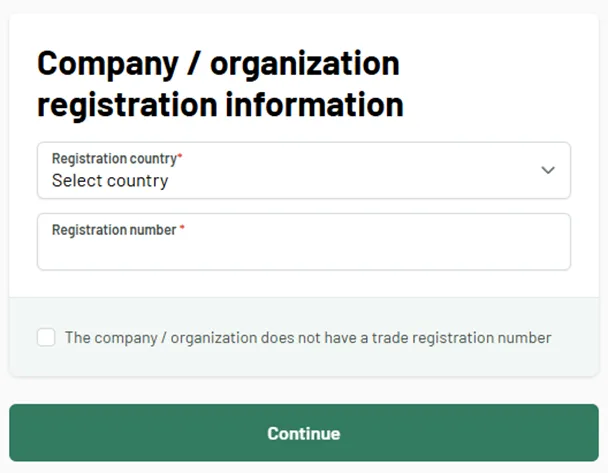
You will be directed to the next screen, where you need to enter the following information:
- Registration country
- Registration number
If the company/organization does not have a registration number, you can check the box below. Then, click “Continue”.
Step 7
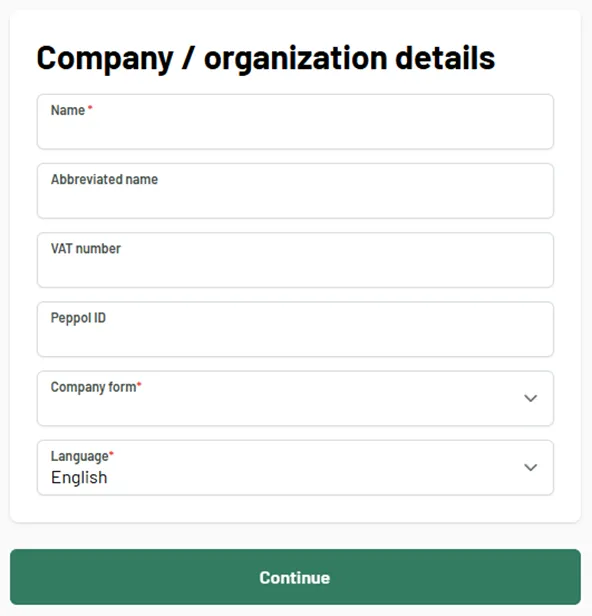
In the next step, we need a few additional details from you:
- Name (already prefilled when you entered a valid registration number)
- Abbreviated name (if applicable)
- VAT number (if applicable)
- Peppol ID (if applicable)
- Company form (already prefilled when you entered a valid registration number)
- Language (which language would you like Leneda to communicate with you in?)
- NACE code (already prefilled when you entered a valid registration number, otherwise not asked)
Then, click “Continue”.
Step 8
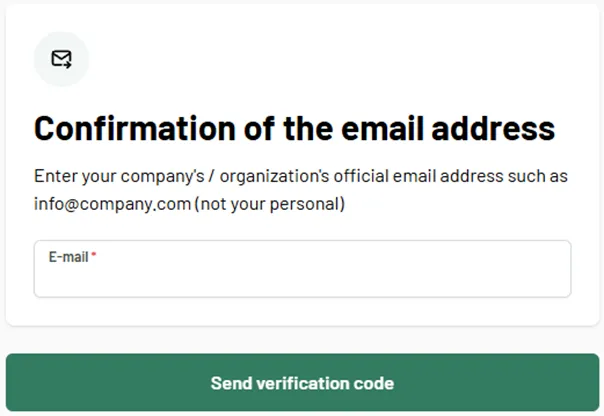
Now we need to know how we should communicate with your company or organization. In a first step, you need to provide the general email address of your company/organization (such as info@company.com), which you will need to verify. After entering the email address, you should click “Send verification code.”
We will send a unique code (OTP) to the email address you provided to ensure you have access to it.
Step 9
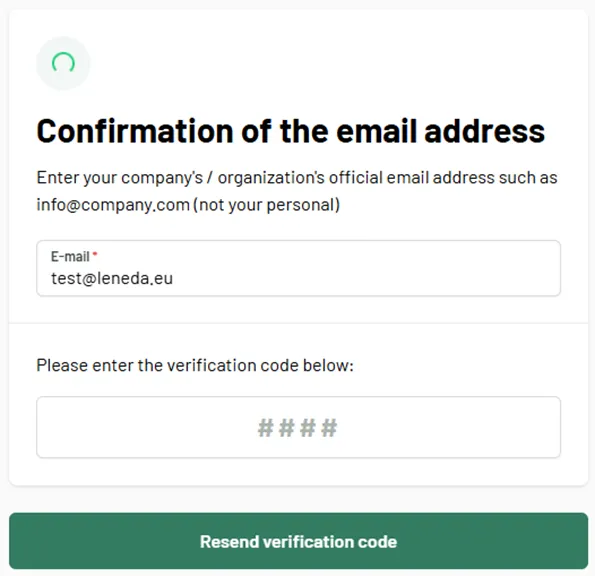
Enter the verification code that was sent to the provided email address. If there was a typo in the provided email address or if you accidentally typed the wrong address, you can correct it and ask for a new verification code. And of course, you can later change the email address in the system.
Step 10
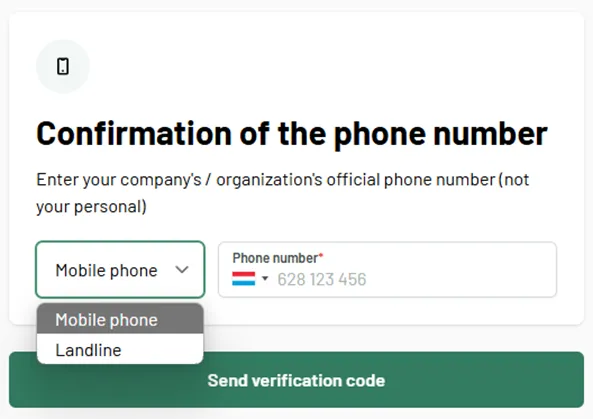
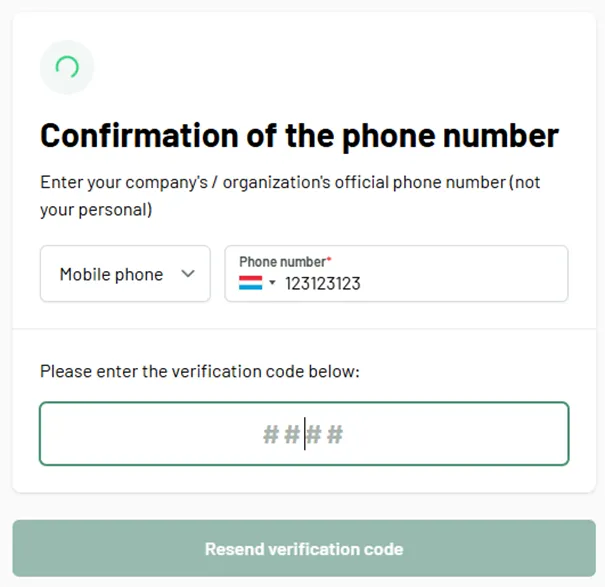
After the verification of the e-mail address, we need a phone number. You can choose between a mobile phone number or a landline number.
- Mobile phone: After entering your mobile phone number click to “Send verification code,” and Leneda will send another unique code via SMS to the provided mobile phone number.
- Landline: After providing the landline number you can click “Continue” and skip the next step.
Step 11
Enter the verification code that was sent to the provided mobile phone number. If there was a typo in the indicated mobile phone number or if you accidentally typed the wrong phone number, you could correct it and ask for a new verification code. You can also switch back to landline number. After entering the correct verification code, the system will proceed to the next step.
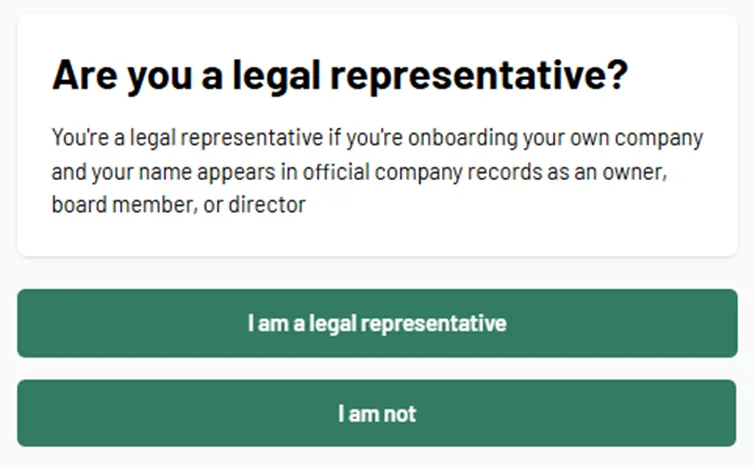
Step 12
You will now be asked whether you are the legal representative of the company or organisation you want to onboard. If you are the legal representative and can provide the necessary documentation, click “I am a Legal Representative”. If you are not, click “I am not”. In this case, you will need to provide a power of attorney from a legal representative.
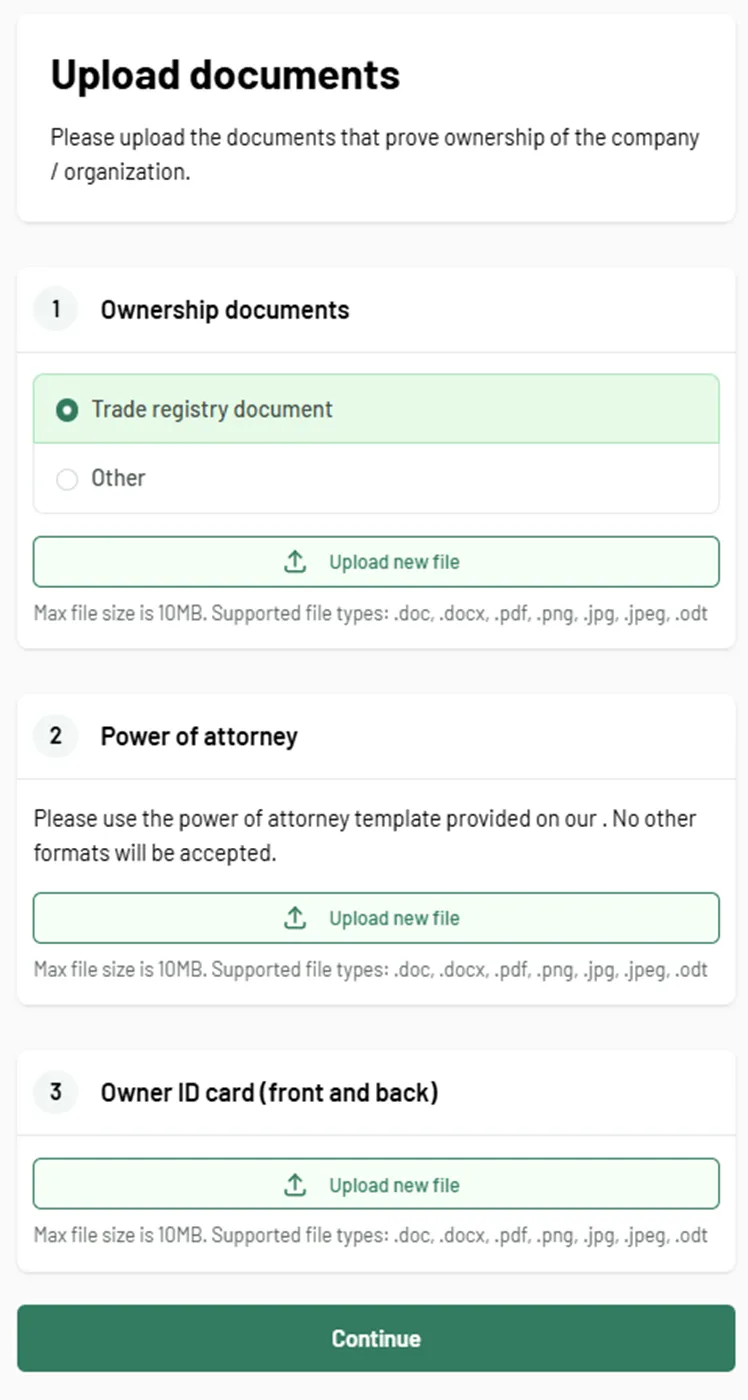
Step 13
Depending on your previous choice, you will be asked to upload different documents.
1. If you are a legal representative
Please upload one or more of the following:
- Ownership document(s):
- Extract from the trade register and/or
- Any other legally valid document indicating who can represent and legally bind the company
2. If you are not a legal representative
Please upload the following:
- Ownership document(s):
- Extract from the trade register and/or
- Any other legally valid document indicating who can represent and legally bind the company
- Power of attorney (You can download the required template form at this link: Leneda - Downloads)
- Owner ID card (front and back)
Once all required documents have been uploaded, click on “Continue” to proceed.
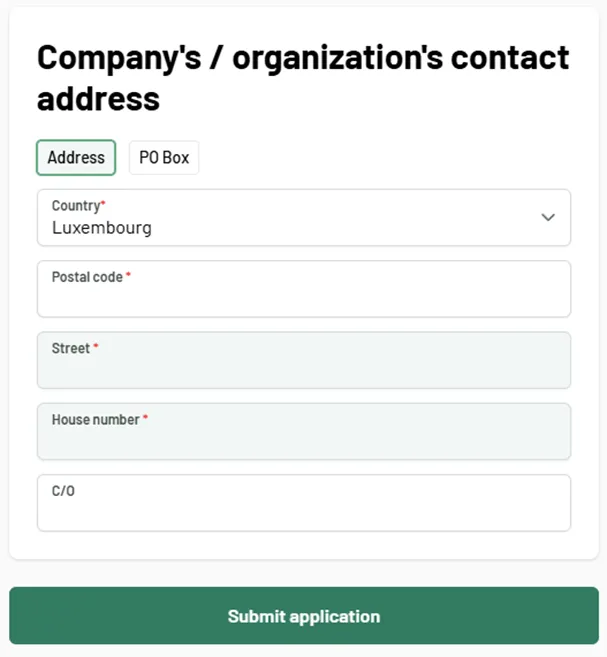
Step 14
In this step, we ask you to provide a contact address. You can choose between a normal address or a PO Box address. All of the fields that include a red mark are mandatory fields. When you are done with the entry of your address, you can click on “Submit application”.
Step 15
Now we need your professional email address to ensure for future logins that you’re still part of the given company or organization. After entering your company/organization email address, click “Send verification code.” We will send a unique code (OTP) to the provided email address to ensure you have access to it.
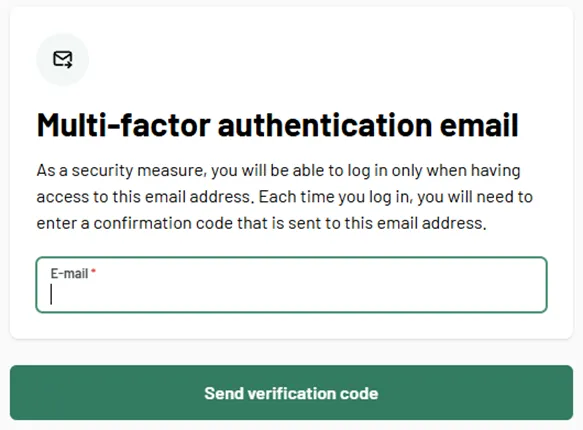
Step 16
Enter the verification code sent to your professional email address. If there was a typo in the provided email address or if you accidentally typed the wrong address, you could correct it and ask for a new verification code. You can also update your email address later in the system.
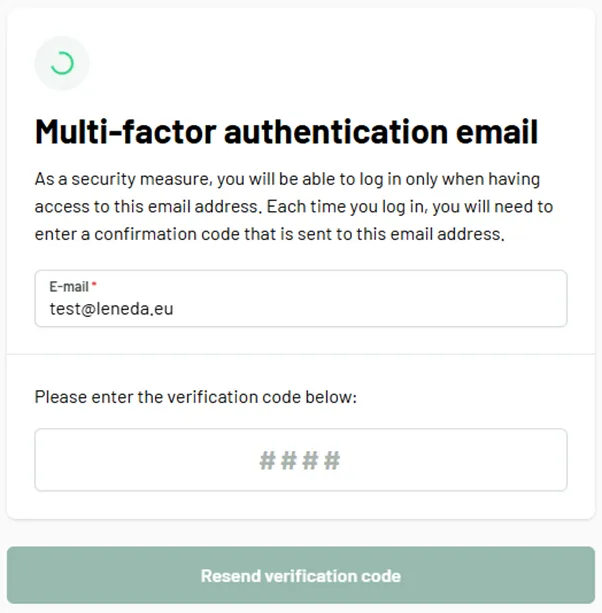
Step 17
You have completed the onboarding process for the company / organization in Leneda. We will now review the submitted data. You will be notified when the onboarding process is complete or if any data is missing. This review can take up to 5 business days. This window can be closed.
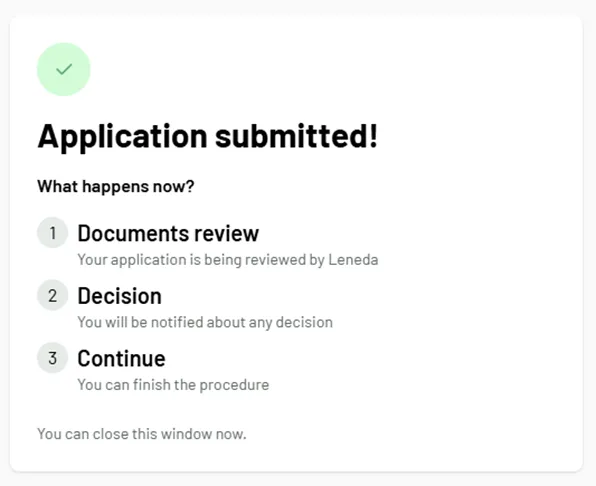
Step 18
On your “Corporate access” Dashboard you will see your submitted applications. For every status change, you will be informed by email. The statuses can be:
- Accepted: Your request has been accepted, and you will receive the Energy ID for your company.
- Rejected: Your request is not validated. You received a mail with the rejection reason. Please contact your grid operator.
- Submitted: Your request is still being processed.
- Ongoing: Your request is still ongoing and not been sent for validation. In this status you can still modify your request by clicking “Continue” or removing by clicking “Delete”.